21 — 导入的模型
介绍
Three.js 让你能创建很多基本几何体,但当碰到更复杂的形状时,我们最好使用专门的 3D 软件。
这节课,我们会使用已经做好的模型,但我们会在以后的课程里学习如何完全在一个 3D 软件里创建一个模型。
格式
随着时间推移,很多 3D 模型格式被使用过。每种格式都回应了一个问题,比如模型里嵌入的是什么数据、文件大小、压缩方式、兼容性、版权等等。
这就是为什么今天我们能用几百种模型格式:https://en.wikipedia.org/wiki/List_of_file_formats#3D_graphics。
有些格式是专属于一个软件的。有些以非常轻量著称,但有时缺少特定数据。有些据说几乎包含你需要的所有数据,但很重。有些格式是开源的,有些不是,有些是二进制的,有些是 ASCII,如此等等。
如果你需要精确的数据,却找不到你的软件支持的合适格式,你甚至可以很容易地自己创建一个。
这里有一份你可能遇到的流行格式列表:
- OBJ
- FBX
- STL
- PLY
- COLLADA
- 3DS
- GLTF
我们不会覆盖所有这些格式。那会很无聊,而且我们也不需要,因为有一种格式正在成为标准,并且应该覆盖你大部分的需求。
GLTF
GLTF 是 GL Transmission Format 的缩写。它由 Khronos Group 制作(就是 OpenGL、WebGL、Vulkan、Collada 背后的团队,拥有 AMD / ATI、Nvidia、Apple、id Software、Google、Nintendo 等许多成员)
GLTF 在过去的几年里变得非常流行。
它支持非常多样化的数据集。你显然能有像几何体和材质这样的数据,但你也能有像相机、灯光、场景图、动画、骨骼、变形,甚至多个场景这样的数据。
它还支持各种文件格式,比如 json、二进制、内嵌纹理。
GLTF 已经成为实时领域里的标准。而且因为它在成为标准,大多数 3D 软件、游戏引擎和库都支持它。这意味着你能很容易地在不同环境里得到相似的结果。
那并不意味着你必须在所有情况下都用 GLTF。如果你只是需要一个几何体,你最好用另一种格式,比如 OBJ、FBX、STL 或 PLY。你应该在每一个项目里测试不同的格式,看看你是否有所需的所有数据、文件是不是不太重、如果信息被压缩了要花多久解压等等。
找一个模型
首先,我们需要一个模型。正如我们之前说的,我们会在以后学习如何在一个 3D 软件里创建我们自己的模型,但现在,让我们用一个现成的。
GLTF 团队也提供了各种模型,从简单的三角形到写实的模型,以及像动画、变形、clearcoat 材质之类的东西。
你能在这个仓库里找到它们:https://github.com/KhronosGroup/glTF-Sample-Assets
如果你想测试这些模型,你必须下载或克隆整个仓库,然后带上你需要的文件。但我们会从一个简单的鸭子开始,你已经在初始项目的 /static/models/ 文件夹里找到它了。
GLTF 格式
虽然 GLTF 本身是一种格式,但它也可以有不同的文件格式。这有点复杂,不过理由很充分。
如果你打开 /static/models/Duck/ 文件夹,你会看到 4 个不同的文件夹。每个都包含同一只鸭子,但格式不同:
- glTF
- glTF-Binary
- glTF-Draco
- glTF-Embedded
你甚至能找到其他格式,但这 4 个是最重要的,并且覆盖了我们需要学的。
小心;你的操作系统可能会隐藏其中一些文件的扩展名。参照你的代码编辑器里的文件名,那里应该会显示扩展名。
glTF
这种格式有点像默认格式。Duck.gltf 文件是一个 JSON,你能在你的编辑器里打开它。它包含各种信息,比如相机、灯光、场景、材质、物体变换,但既没有几何体也没有纹理。Duck0.bin 文件是二进制,你不能就这样读取。它通常包含像几何体和所有与顶点相关的信息,比如 UV 坐标、法线、顶点色等等。DuckCM.png 就是这只鸭子的纹理。
当我们加载这种格式时,我们只加载包含对其他文件的引用的 Duck.gltf,然后那些文件会被自动加载。
glTF-Binary
这种格式只由一个文件组成。它包含我们在 glTF 默认格式里谈到过的所有数据。那是一个二进制文件,你不能直接在代码编辑器里打开看里面有什么。
这种格式可以稍微更轻,也更容易加载,因为只有一个文件,但你不能轻易地修改它的数据。例如,如果你想调整大小或压缩纹理,你就是做不到,因为它在那个二进制文件里,和其余部分混在一起。
glTF-Draco
这种格式像 glTF 默认格式,但 buffer 数据(通常是几何体)使用 Draco 算法压缩。如果你比较 .bin 文件的大小,你会看到它轻得多。
虽然有一个单独的文件夹用于这种格式,但你可以把 Draco 压缩应用到其他格式上。
让我们把这个放一边,我们稍后会谈论更多。
glTF-Embedded
这种格式像 glTF-Binary 格式,因为它只有一个文件,但这个文件实际上是一个 JSON,你能在你的编辑器里打开。
这种格式唯一的好处是只有一个容易编辑的文件。
选择
选择合适的格式取决于你想如何处理这些资源。
如果你想在导出后能修改纹理或灯光坐标,你最好选 glTF-default。它还有一个优点,就是分别加载不同的文件,从而带来加载速度的提升。
如果你每个模型只想要一个文件,而且不在乎修改资源,你最好选 glTF-Binary。
在这两种情况下,你必须决定是否想用 Draco 压缩,但我们稍后会覆盖这一部分。
设置
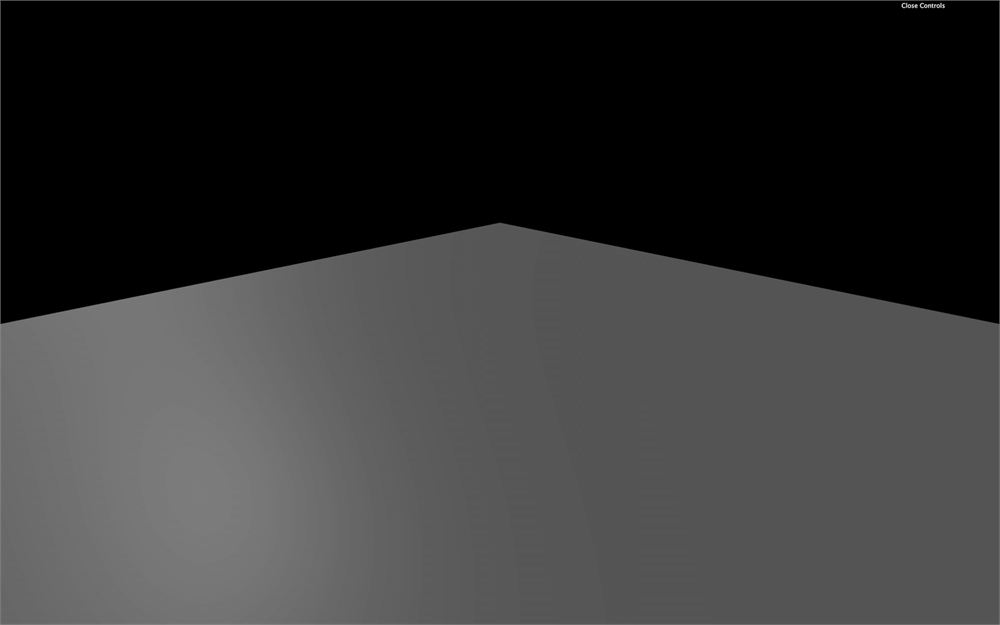
初始项目由一个空平面组成。
因为 GLTF 是一个标准,它明确支持灯光。通常,当你把 GLTF 导入你的 Three.js 项目时,你最终会得到具有 MeshStandardMaterial 的 Mesh,而且你大概记得,如果你的场景里没有灯光,你就看不到那些材质多少。
初始项目里已经有一个 AmbientLight 和一个 DirectionalLight。
在 Three.js 里加载模型
要在 Three.js 里加载 GLTF 文件,我们必须使用 GLTFLoader。这个类默认不在 THREE 变量里。我们需要从 three 依赖里的 examples/ 文件夹导入它:
import { GLTFLoader } from 'three/examples/jsm/loaders/GLTFLoader.js'然后我们可以像对 TextureLoader 做的那样实例化它:
/**
 * Models
 */
const gltfLoader = new GLTFLoader()如果我们需要的话,我们也可以像在纹理课程里做的那样使用一个 LoadingManager。
加载模型,好消息是,几乎和加载纹理一样容易。我们调用 load(...) 方法并使用正确的参数:
- 文件的路径
- 成功的回调函数
- 进度的回调函数
- 错误的回调函数
gltfLoader.load(
    '/models/Duck/glTF/Duck.gltf',
    (gltf) =>
    {
        console.log('success')
        console.log(gltf)
    },
    (progress) =>
    {
        console.log('progress')
        console.log(progress)
    },
    (error) =>
    {
        console.log('error')
        console.log(error)
    }
)
你应该看到 progress 和 success 函数被调用。如果文件加载失败,error 函数可能会被调用。检查路径,别忘了我们不能加 /static 部分。
让我们假装我们知道自己在做什么,移除 progress 和 error 回调:
gltfLoader.load(
    '/models/Duck/glTF/Duck.gltf',
    (gltf) =>
    {
        console.log(gltf)
    }
)
把加载的模型添加到我们的场景
如果你看控制台里记录的对象,你会找到很多元素。最重要的部分是 scene 属性,因为导出的模型里只有一个场景。
这个 scene 包含我们需要的所有东西。但它也包含更多。永远先研究它里面有什么可用,并查看不同的 Group、Object3D 和 Mesh 的 scale 属性。
我们得到类似这样的东西:
THREE.Group: scene
└───Array: children
    └───THREE.Object3D
        └───Array: children
            ├───THREE.PerspectiveCamera
            └───THREE.Mesh
那个 Mesh 应该就是我们的鸭子。我们不太在乎那个 PerspectiveCamera。相机和鸭子似乎都在场景 children 数组里的第一个也是唯一一个 Object3D 里。更糟的是,那个 Object3D 的 scale 被设成了极小的值。
正如你看到的,即使只是想拿到我们的鸭子也有点复杂,而这正是大多数初学者迷路的地方。
我们想要的只是把我们的鸭子放到场景里。我们有很多方式做到:
- 把整个
scene添加到我们的场景。我们可以这么做,因为即使它的名字是scene,它实际上是一个 Group。 - 把
scene的 children 添加到我们的场景,并忽略未使用的 PerspectiveCamera。 - 在添加到场景之前过滤 children,移除像 PerspectiveCamera 这样的不需要的对象。
- 只添加 Mesh,但最终鸭子可能被错误地缩放、定位或旋转。
- 在一个 3D 软件里打开文件,移除 PerspectiveCamera,然后重新导出。
因为我们的模型结构简单,我们会把 Object3D 添加到我们的场景,并忽略里面未使用的 PerspectiveCamera。在以后的课程里,我们会把整个场景作为一个对象添加:
gltfLoader.load(
    '/models/Duck/glTF/Duck.gltf',
    (gltf) =>
    {
        scene.add(gltf.scene.children[0])
    }
)
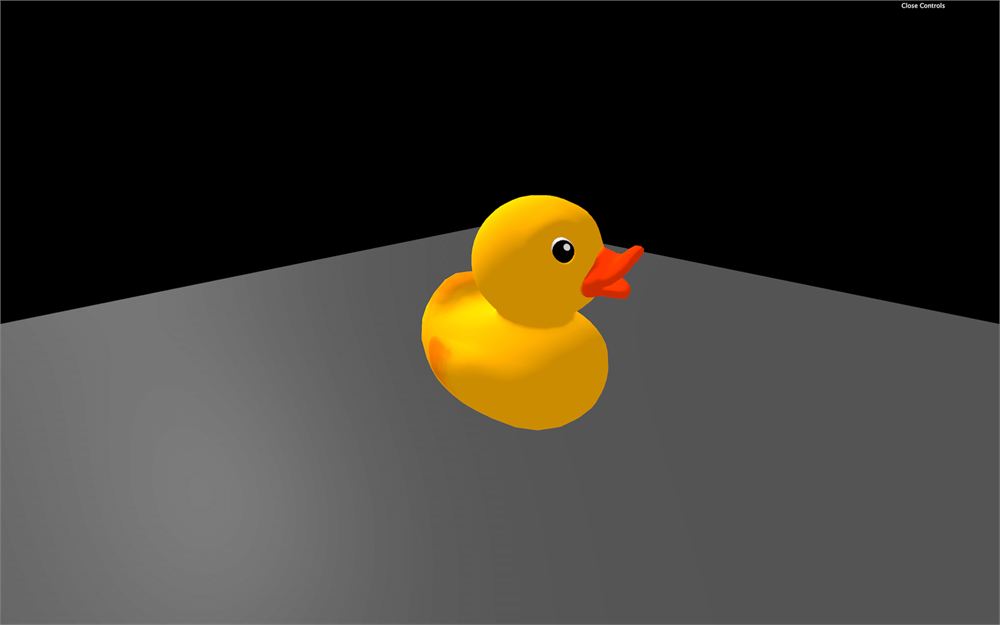
你应该看到那只鸭子。
你可以尝试其他格式,但不包括还不管用的 Draco:
gltfLoader.load(
    '/models/Duck/glTF/Duck.gltf', // Default glTF

// Or
gltfLoader.load(
    '/models/Duck/glTF-Binary/Duck.glb', // glTF-Binary

// Or
gltfLoader.load(
    '/models/Duck/glTF-Embedded/Duck.gltf', // glTF-Embedded
另一个名为 FlightHelmet 的模型(也取自 glTF 模型样本)在 /static/models/ 文件夹里可用。这个模型只有一种格式,那就是默认的 glTF。
试着加载这个模型:
gltfLoader.load(
    '/models/FlightHelmet/glTF/FlightHelmet.gltf',
    (gltf) =>
    {
        scene.add(gltf.scene.children[0])
    }
)
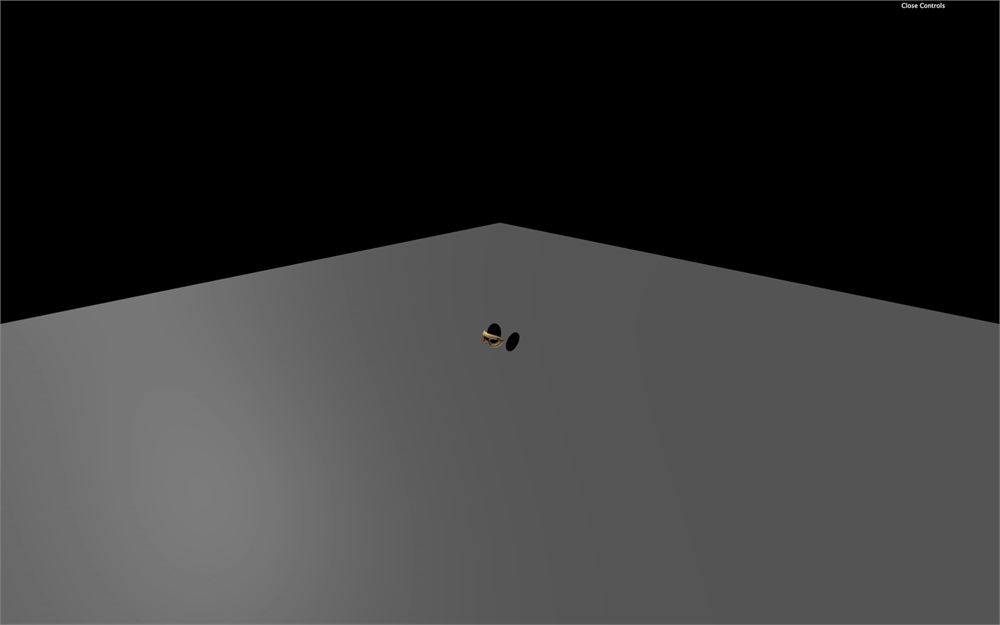
我们没有得到美丽的头盔,只得到几个零件。
问题是我们只把加载的 scene 的第一个 child 添加到了我们的场景。
我们能尝试的对 children 循环,并把它们添加到场景:
for(const child of gltf.scene.children)
{
    scene.add(child)
}
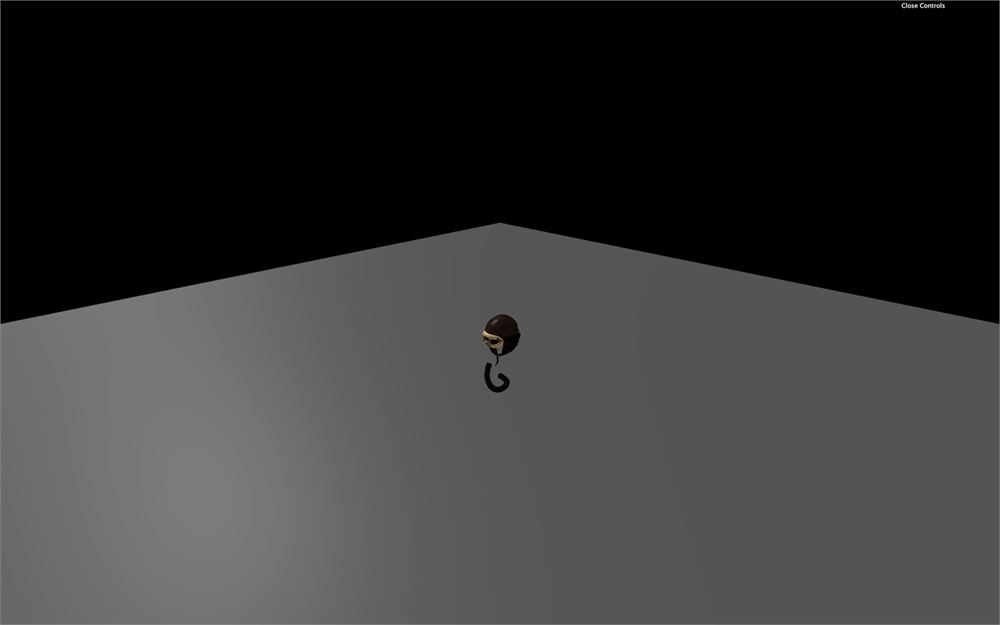
那会产生更多的元素,但不是全部。更糟的是,刷新的时候,你可能会得到不同的部件。
问题是当我们把一个 child 从一个场景添加到另一个场景时,它会被自动从第一个场景移除。那意味着第一个场景现在里面的 children 更少了。
当我们添加第一个对象时,它会从第一个场景被移除,而第二个元素就移动到了第一个位置。但你的循环现在取的是数组的第二个元素。你总会让 children 数组里留一些元素。
解决这个问题有多种方案。第一种方案是取加载场景的第一个 child,把它添加到我们的场景,直到没有剩为止:
while(gltf.scene.children.length)
{
    scene.add(gltf.scene.children[0])
}
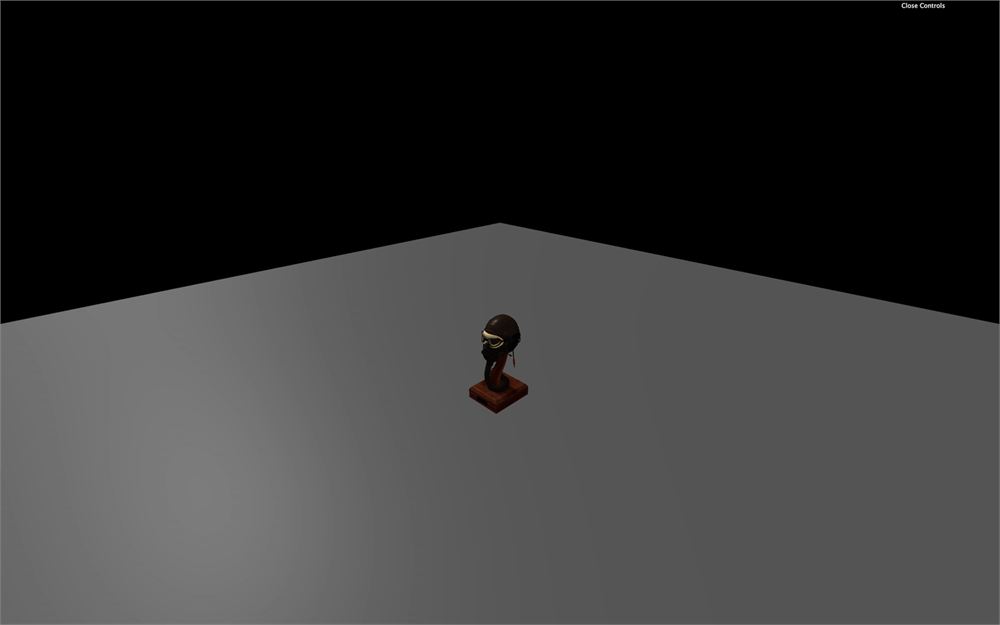
我们现在得到整个头盔了。
另一个方案是复制 children 数组,以获得一个不被改动、独立的数组。要做到这一点,我们可以用展开操作符 ...,并把结果放到一个全新的数组 [] 里:
const children = [...gltf.scene.children]
for(const child of children)
{
    scene.add(child)
}
这是原生 JavaScript 里复制数组而不动原数组的技巧。
最后,我们之前提到过的一个又好又简单的方案是添加 scene 属性:
scene.add(gltf.scene)我们的头盔太小了,我们本可以直接放大比例,但相反,我们会回到我们的鸭子,尝试 Draco 压缩版本。
Draco 压缩
让我们回到我们的鸭子,但这一次,我们会用 Draco 版本:
gltfLoader.load(
    '/models/Duck/glTF-Draco/Duck.gltf',
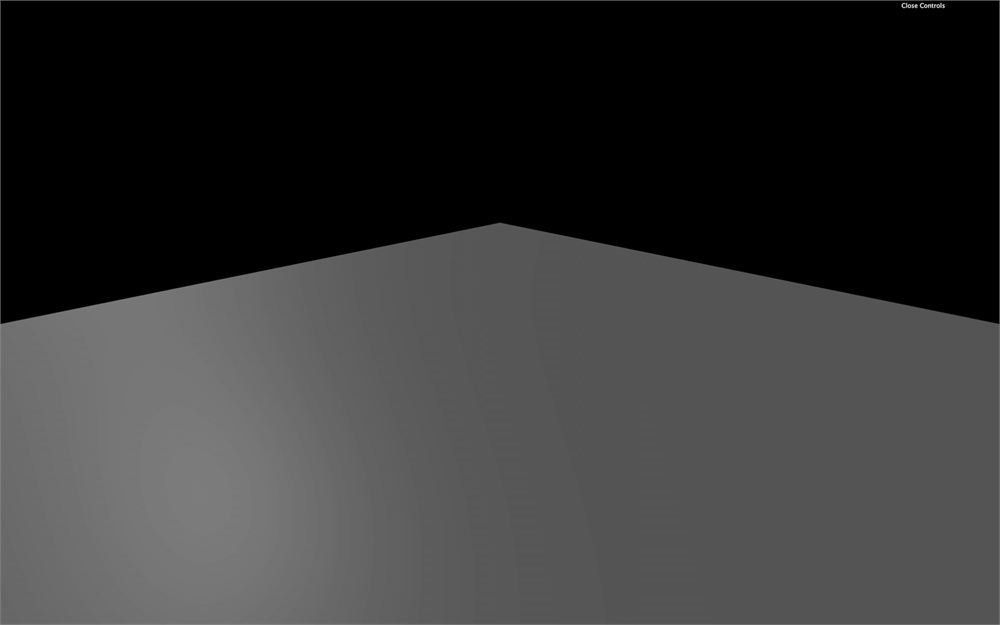
可惜,我们没有得到小鸭子。如果你看日志,你应该看到一个警告,长这样 No DRACOLoader instance provided。我们需要给我们的 GLTFLoader 提供一个 DRACOLoader 实例,这样它才能加载压缩文件。
正如我们浏览文件时看到的,Draco 版本可以比默认版本轻得多。压缩应用于 buffer 数据(通常是几何体)。无论你用 default glTF、binary glTF 还是 embedded glTF 都一样。
它甚至不专属于 glTF,你可以把它用在其他格式上。但 glTF 和 Draco 同时变得流行起来,所以实现进展在 glTF 导出器里更快。
Google 在开源 Apache License 下开发这个算法:
添加 DRACOLoader
Three.js 已经支持 Draco。我们必须从导入 DRACOLoader 开始:
import { DRACOLoader } from 'three/examples/jsm/loaders/DRACOLoader.js'然后我们可以实例化这个 loader(在 gltfLoader 之前):
const dracoLoader = new DRACOLoader()解码器以原生 JavaScript 提供,也有 Web Assembly(wasm)版本,而且它可以在 worker(另一个线程,就像我们在物理课程末尾看到的那样)里运行。这两个特性显著提升了性能,但它们意味着拥有一段完全分离的代码。
Three.js 已经提供了这段分离的代码。为了找到它,我们必须浏览 Three.js 依赖,并把 Draco 解码器文件夹复制到我们的 /static/ 文件夹。
这个 Draco 文件夹位于 /node_modules/three/examples/jsm/libs/。把整个 /draco/ 文件夹复制到你的 /static/ 文件夹。我们现在可以为我们的 dracoLoader 提供这个文件夹的路径:
dracoLoader.setDecoderPath('/draco/')最后,我们可以用 setDRACOLoader(...) 方法给 GLTFLoader 实例提供 DRACOLoader 实例:
gltfLoader.setDRACOLoader(dracoLoader)
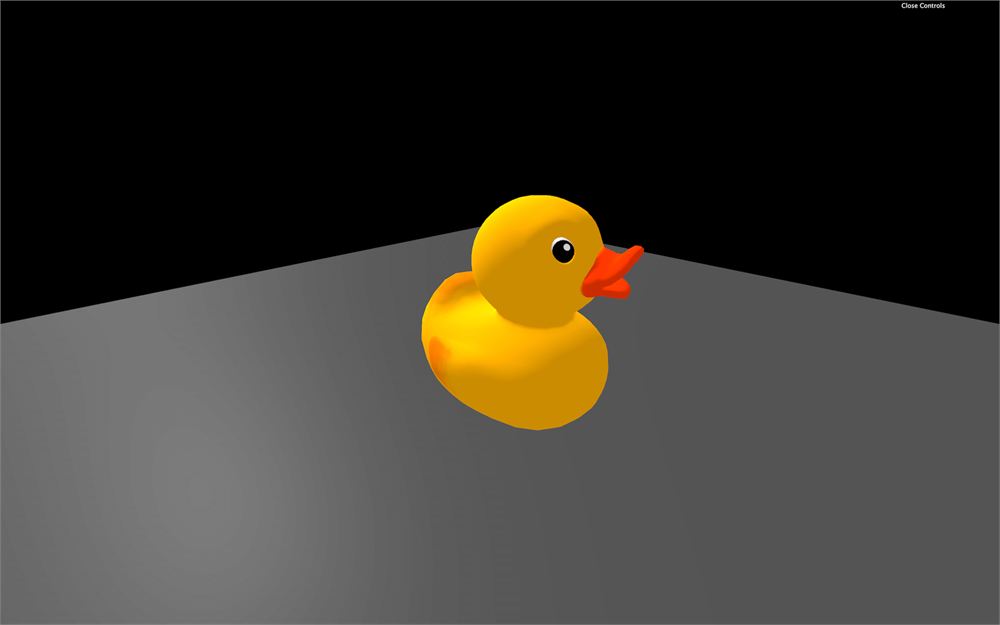
你的鸭子应该回来了,但这一次它是 Draco 压缩版本。
你仍然可以用 GLTFLoader 加载未压缩的 glTF 文件,而且 Draco 解码器只在需要时被加载。
什么时候用 Draco 压缩
虽然你可能认为 Draco 压缩是双赢的局面,但它不是。是的,几何体更轻了,但首先,你必须加载 DRACOLoader 类和解码器。其次,你的电脑需要时间和资源来解码压缩文件,这会在这体验的开始时造成短暂的卡顿,即使我们用了 worker 和 Web Assembly 代码。
你必须自己权衡,并决定什么是最好的解决方案。如果你只有一个带 100kB 几何体的模型,你大概不需要 Draco。但如果你要加载许多 MB 的模型,而且不在乎体验开始时的卡顿,你可能需要 Draco 压缩。
动画
正如我们之前说的,glTF 也支持动画。而且 Three.js 可以处理那些动画。
加载一个带动画的模型
首先,我们需要一个带动画的模型。我们可以用位于 /static/models/Fox/ 文件夹里的狐狸(也取自 glTF 模型样本)。
改一下路径去加载那只狐狸:
gltfLoader.load(
    '/models/Fox/glTF/Fox.gltf',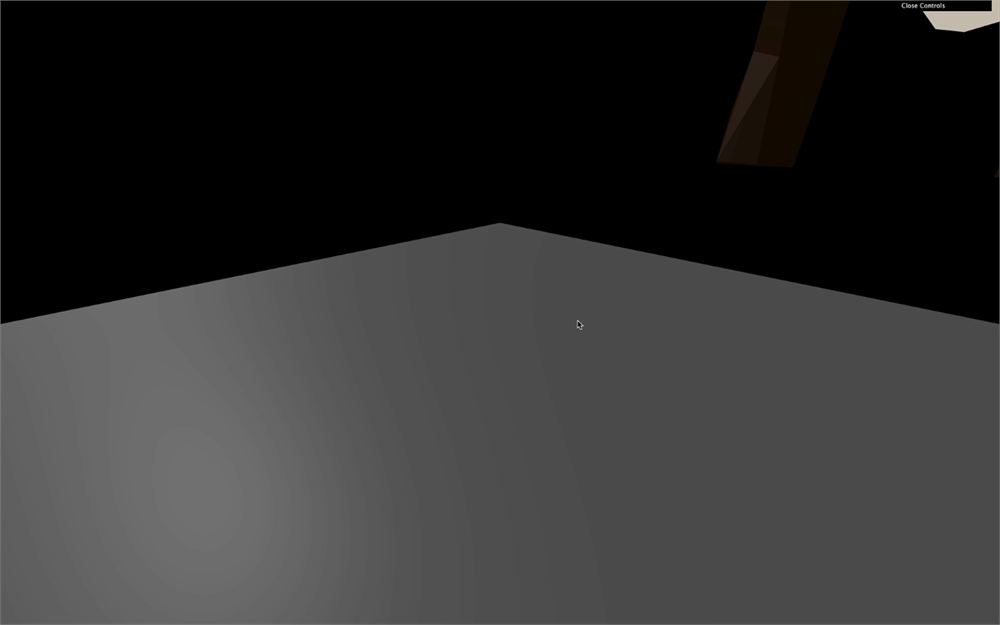
我们有个问题;这只狐狸太大了。如果你看不到它,看上面或缩小。
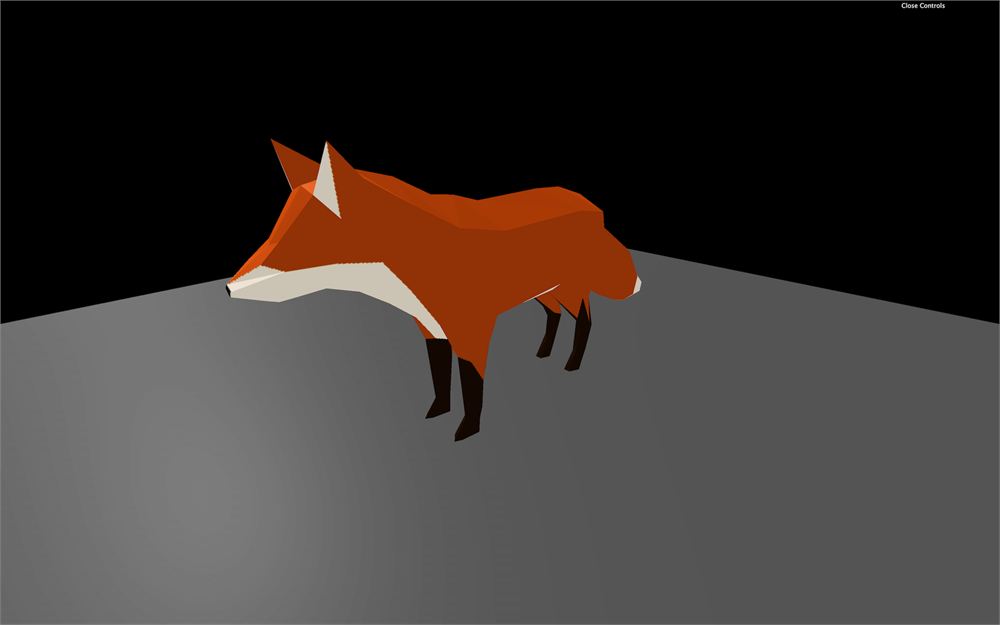
在处理动画之前,让我们先修复缩放。如果你看导入场景的组成结构,狐狸由一个 Object3D 组成,它本身又由一个 Bone 和一个 SkinnedMesh 组成。我们不会解释这些是什么,但思路是我们不应该简单地缩放 Object3D。即使在这种情况下可行,对更复杂的模型大概就不行了。
在这里我们能做的,是缩放加载的场景,并直接把它添加到我们的场景:
gltfLoader.load(
    '/models/Fox/glTF/Fox.gltf',
    (gltf) =>
    {
        gltf.scene.scale.set(0.025, 0.025, 0.025)
        scene.add(gltf.scene)
    }
)
处理动画
如果你看加载的 gltf 对象,你能看到一个名为 animations 的属性,包含多个 AnimationClip。
这些 AnimationClip 不能轻易使用。我们首先需要创建一个 AnimationMixer。一个 AnimationMixer 就像一个关联到对象的播放器,它可以包含一个或多个 AnimationClip。思路是为每个需要动画的对象创建一个。
在 success 函数里面,创建一个 mixer,并把 gltf.scene 作为参数传入:
const mixer = new THREE.AnimationMixer(gltf.scene)我们现在可以用 clipAction(...) 方法把 AnimationClip 添加到 mixer。让我们从第一个动画开始:
const action = mixer.clipAction(gltf.animations[0])这个方法返回一个 AnimationAction,我们终于可以在它上面调用 play() 方法:
action.play()遗憾地,还是没动画。
要播放动画,我们必须告诉 mixer 在每一帧更新自己。问题是我们的 mixer 变量是在 load 回调函数里声明的,我们在 tick 函数里访问不到它。要修复这个,我们可以在 load 回调函数外面把这个 mixer 变量声明为 null,并在模型加载时更新它:
let mixer = null

gltfLoader.load(
    '/models/Fox/glTF/Fox.gltf',
    (gltf) =>
    {
        gltf.scene.scale.set(0.03, 0.03, 0.03)
        scene.add(gltf.scene)

        mixer = new THREE.AnimationMixer(gltf.scene)
        const action = mixer.clipAction(gltf.animations[0])
        action.play()
    }
)
最后,我们可以用已经算好的 deltaTime 在 tick 函数里更新 mixer。
但在更新之前,我们必须测试 mixer 变量是否不同于 null。这样,如果模型加载了我们就更新 mixer,也就是说动画还没准备好的情况下也不会出错:
const tick = () =>
{
    // ...

    if(mixer)
    {
        mixer.update(deltaTime)
    }

    // ...
}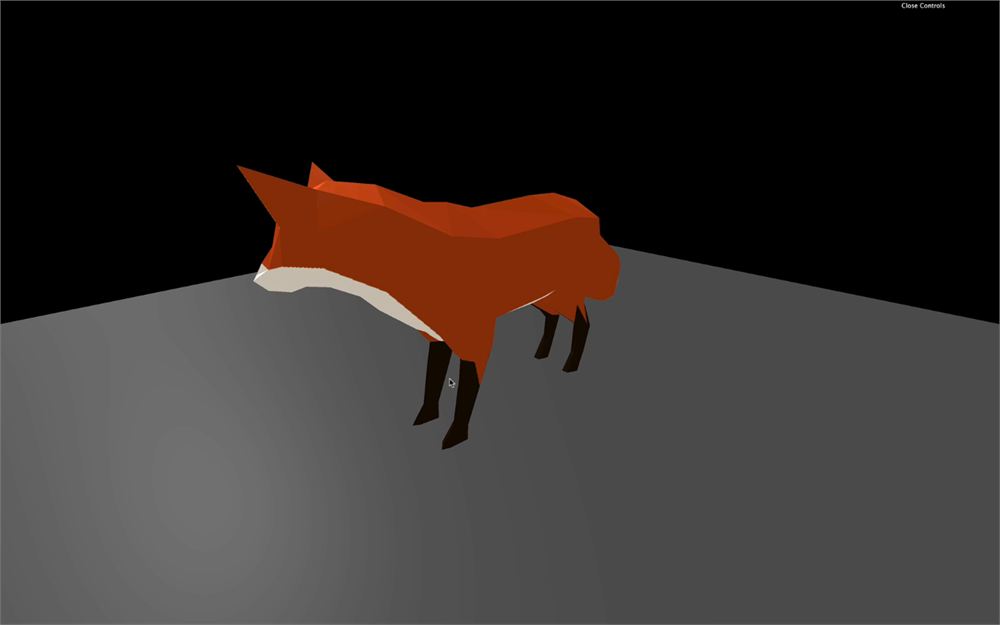
动画应该正在运行。你可以通过改变 clipAction(...) 方法里的值来测试其他动画。
const action = mixer.clipAction(gltf.animations[2])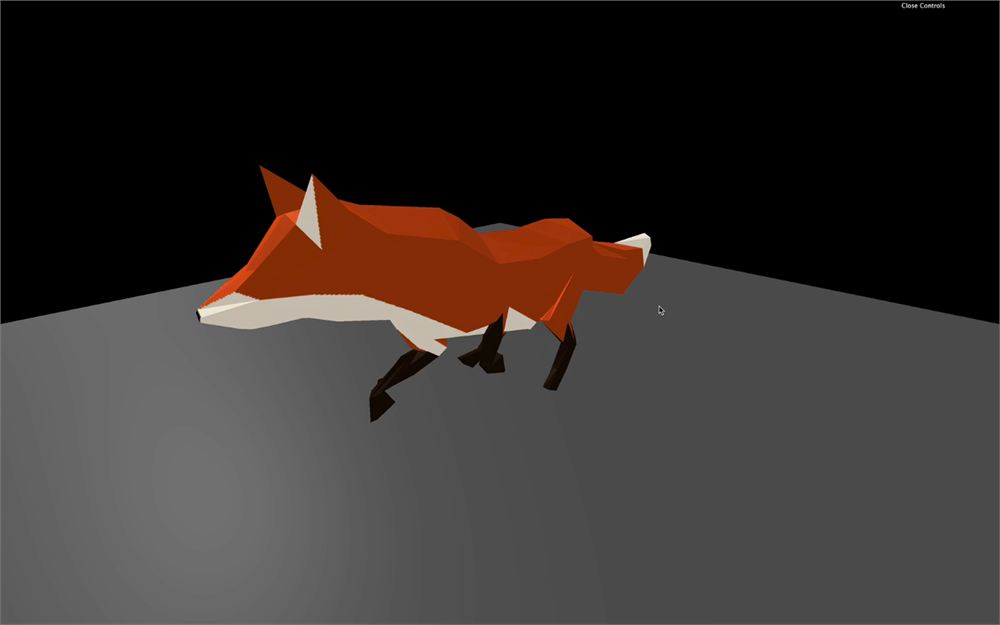
Three.js 编辑器
Three.js 拥有它自己的在线编辑器。你可以在这里找到它:https://threejs.org/editor/
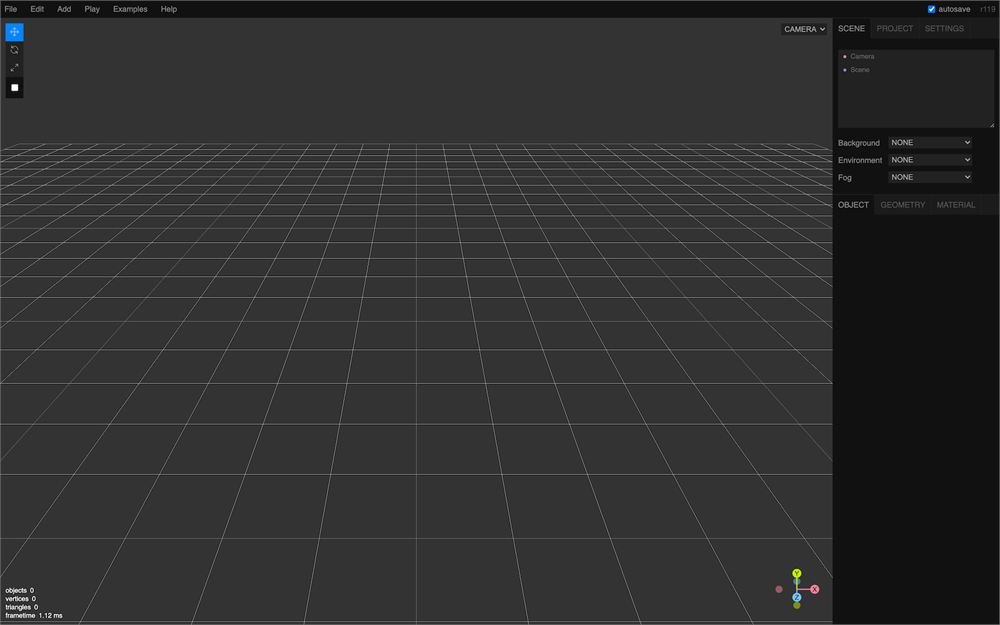
它就像一个 3D 软件,但是在线的,特性也更少。你能创建基本几何体、灯光、材质等等。
因为你可以导入模型,这是测试你的模型是否正常工作的好方法。不过小心;你只能测试由一个文件组成的模型。你可以试试 glTF-Binary 或 glTF-Embedded 的鸭子。
把模型拖放进编辑器。
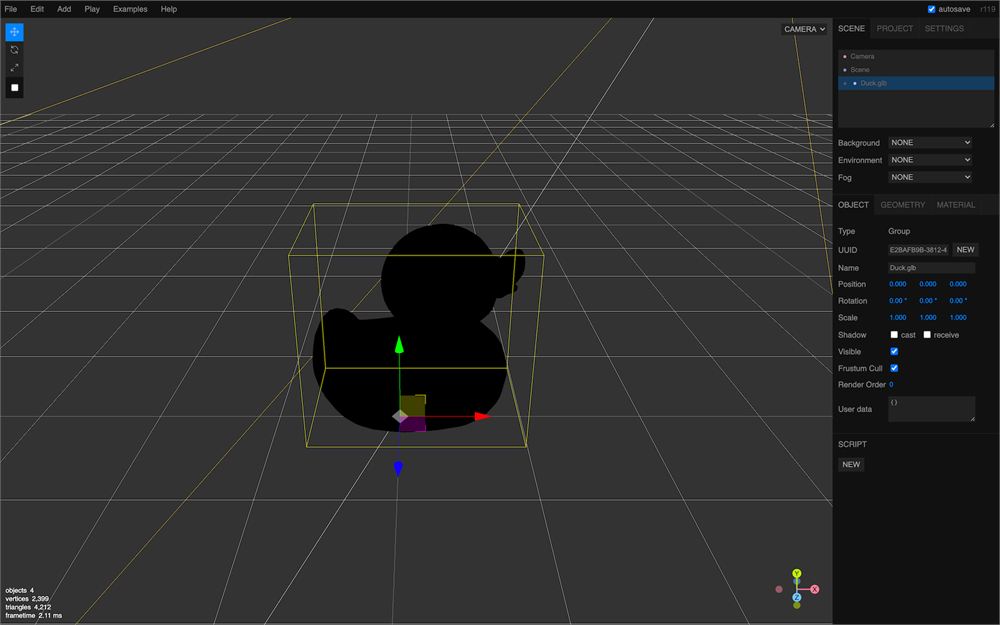
你应该看到一只黑色的鸭子,因为没有灯光。从 Add 菜单添加一个 AmbientLight 和一个 DirectionalLight 来更清楚地看到它。
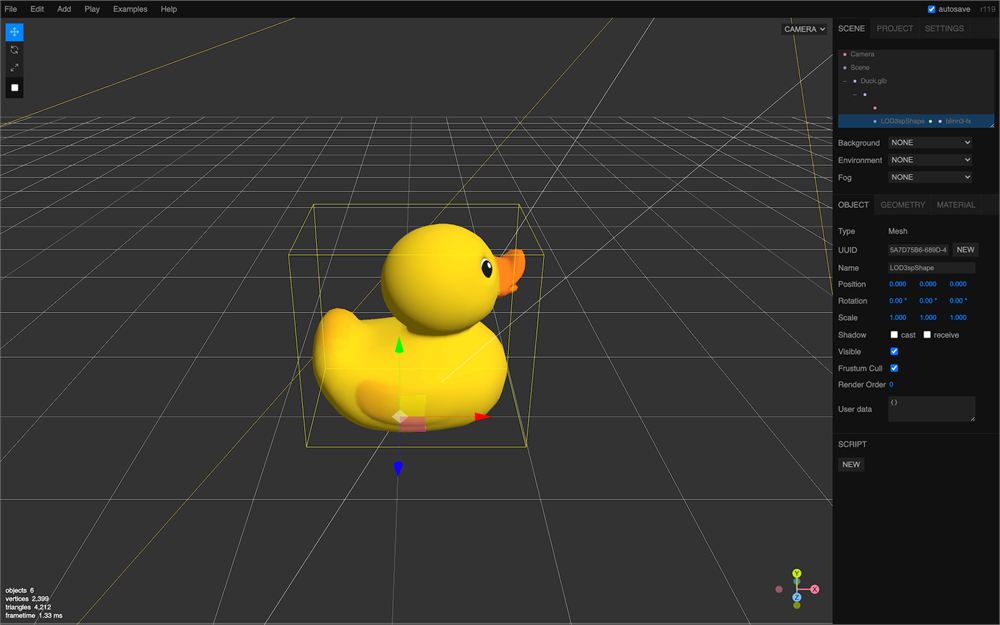
最后,你能以各种格式导出你的场景,供你在代码里复用,但那就超出范围了。
目前就这些,但我们会在接下来的课程里多次使用加载的模型。